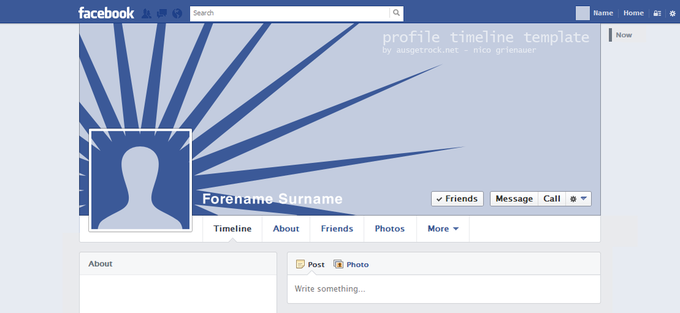
Adaptation of Facebook Timeline cover and avatar with a template
For Facebook, there are already some so-called hacks: Album hack, profile hack and now there is the Timeline hack...
With these "hacks" you change look of your Facebook profiles/pages/etc by individual images that are seen in the whole as a single image.
Facebook Timeline Information Site
Therefore I created a Photoshop template, which allows you a quick and simple preparation.
are you looking for a Facebook Template for Facebook PAGES?
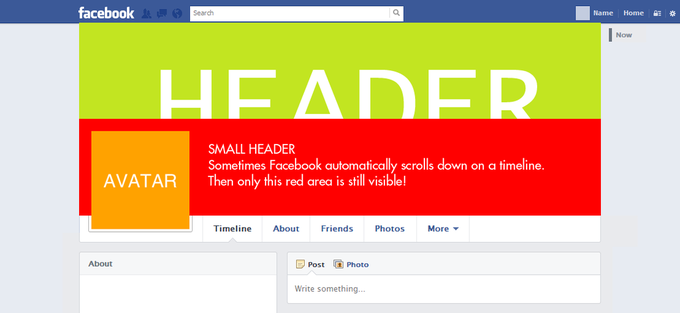
The dimensions of the Timeline header image is 851 x 315 pixels (wxh) and the avatar image 180x180 pixels, but is reduced from Facebook automatically to 125x125 160x160 pixels.
Timeline Hack Step by Step
- After the download unzip the file and open fb_timeline_template.psd
- In the layers folder "personalization" do your personalisation
- Then hide the layer "overlay" and create two separate pictures (use the guides or the layers "avatar" and "header" for the sizes of the pictures) - you dont need this step if you use the supplied action set!
- Upload them and choose it as avatar and title picture.
- Done!
Update Facebook Timeline Template v1.1
Paul I. has send me a revised version. Thank you Paul!
Now its bigger to avoid facebook errors with the files and I added a Photoshop action (double-click on the Facebook_timeline_hack.atn Photoshop action to add) In the action pallet you can run the action and it automatically creates the two needed pictures for you.
Update Facebook Timeline Template v1.2
Update Facebook Timeline Template v1.3
UPDATE FACEBOOK TIMELINE TEMPLATE V1.4
Facebook has changed the layout again (username moved into the picture and the app tabs are only text links) the position of the avatar changed also.
May avatar has a wrong size...
Video Tutorial: Howto hack your facebook timeline with personalized pictures
because ob big request, here a tutorial video "how to use the template"
Comments
thanks for the template. wish it could be more simple though
hey, any chance you could elaborate on how to save the image that will be uploaded to facebook. i'm assuming that slices are used, but i can't recall how to do it! also, the image size seems to be too big, not to the official fb scale.. or maybe it's just the image i pasted in.
@Sam: hide the layer "overlay" and save only the size of the "HEADER" layer to a new file. this is your new timeline picture. for the avatar only copy the size of the "AVATAR" layer to a new file and upload it as your new user picture to facebook.
@Sam: would a youtube video be helpful?
What am i doing wrong? I put the photo so it covers everywhere.. but i can't figure out how to save just the pieces. I did go ahead and use the rectangular marquee tool to copy the header into a new jpg. I went to do the save with the avatar, and did that as well. However when I uploaded the avatar, facebook said it had to be 180 pixels. Yours has been the easiest so far to use, however i just feel like im missing a step. Any help would be much appreciated. If it matters, Im using photoshop 7.0 Thanks! (And yes, a youtube video would be a ton of help)
Now I see... Photoshop7 is a problem, because there are no Smart Objects... Workaround: when you have your Avatar image in a new File, klick on image/image size and give it at least 180x180px and save this image and now you are able to upload it. Better way is to have a bigger Square Image to start with and use it for the Avatar instead to scale a small one... I will check if I can make a simpler template... and if I have time a Video ;)
Thanks for the template.
Awesome. Thanks. Could you please share how could you do it?
Maybe increase the template size to the point where the avatar reaches 180x180px. That way the avatar is the correct size-- the header will still be the same ratio and Facebook will just downsize for you.
v1.1 of the template is online and has now a photoshop action for simplest creation of the needed images! thx for your Support Paul I.!
or just you can upload it to your timeline and than add it as profile picture, no need to have bigger picture :)))
There's some problem with right to left languages ... the avatar photo place on the right of the screen ... this template could be better if it supports both right and left avatar photos
Could anyone please post a video explaining all the process to get this done, (i'm not familiar with photoshop yet) PLEASE! ;)
@Nico : A youtube video would really be helpful. Thanks a lot. Cheers!
A lot of people have asked and now I have dona a small Tutorial Video for you!
its in the blog post and also on youtube
hope you like it.
I use the template, add the pic and arrange it fit the template. But there is no way I can save it into 2 separate pics. Please help. I use CS5
use the Photoshop Action in the zip file... (in the Video everything is shown :))
ohh man this is awesome i created my own covers thanks for this.
Works good except when you want to use a screenshot as one of the photos. I'd like the screenshot to be shown at 100% in the timeline, however this exports an image that is too big and scales down the screenshot.
Awesome, although I know little of photoshop I managed through. Thanks for an awesome template.
hmmmm...i double clicked on fb timeline hack and it opened up my photoshop elements 9 but from there i got lost hahaha..i cant even find my actions pallet and it looks nothing like your video...does this work in photoshop elements 9???
sorry... this template only works with Photoshop and not the elements version ^^
photoshop elements has not the features for this to work!
Thanks for the awesome template and tutorial. However, when I try to run the action, I get an error that Photoshop "Could not complete the command because of a problem using the Adobe Color Engine." A quick search online indicated problems with grayscale images, but I'm trying a color photo. I'm using CS 4 v. 11. Any thoughts?
@Pat: Sorry, i have no idea what went wrong!
bad workaround: crop and save the images by yourselfe (use the guidelines...)
Hmmm...I found one posting online that suggesting resetting the Photoshop preferences. On a Mac, you do this by holding Option + Command + Shift when you start up Photoshop. That seems to have resolved the problem.
muchas gracias, de veras es un trabajo estupendo para un principiante como yo, otra vez muchas pero muchas gracias
I've tried using this with a logo, and the cover photo looks to be about 10 pixels off, even though I'm using the template to a T. Any ideas whether this has been updated?
Since Facebook introduced the new Pages Timelines, the Avatar went 17 Pixels down :( I have to adapt the Template to fix this... soon... :)
Thank you very much this is awesome - you rock for sharing this. Good Karma!
Hi:
Great work, did you adapt the little difference? Hope you can and let us know!
the new version will be available middle of the week!
Thanks for the template! I had to mess around with the height of my logo, but I got it relatively aligned with v1.1 template.
Check it out at:
https://www.facebook.com/AtomicMPC
the Update for pages is online!
-> facebook pages timeline template
Very helpful. Thx.
Any updates for the template? the timeline updated its profile picture and now the avatar is much bigger than it was in the template.
Facebook has changed the size of Avatars... I will fix the template soon!
I followed the sequence perfectly. The avatar does not line up properly. I await your updated template with great eagerness!
heyy thnx for template i have done everything aranged my pictures but the avatar and header are not saving iam using photoshop 7 plzz help and thnx in advance!! :)
The template works amazing! but facebook is changing stuff. is there a simple workaround to change the size of the avatars ourselves without the template?
v1.2 is out :)
and it is waiting for your creativity!
Hi, I used 1.1 and it was ok until Facebook made some changes that I just noticed today.
I came back and saw that you released 1.2 so I tried that out but the Avatar sizing is still off.
Is 1.2 correct?
For timeline user profiles this template should work!
For Facebook Pages you have to take the fb template for pages!
Hi, I have the same prob as the person above, ie, the avatar is still too small for the user profiles now that fb have made it bigger.
now I got the problem! Facabook displays different Sizes of the picture if a user is logged in or logged out... logged out user profile pages have a bigger picture!
is 160x160px... instead of 125x125px! So only people logged out from facebook will see this combination... I think more people are logged in so we should stay focused on the small avatar size so that it is displayed correctly for the most users...?!
The Avatar size requirements are at 180x180, and I don't believe they resize it anymore to 125x125...
please watch my timeline is error .
avatar photo is so big :(
please .
please ..
Hi Nico,
Looks like FB has changed something again as mentioned by people in the comments. The avatar size is off in 1.2 as well. It was fine till about yesterday for me.
Anyways, wish I could change the settings in the PSD, but unfortunately am not so familiar with photoshop.
Waiting for your fix/update :)
Thanks a million!
I will decide next week how to fix it because facebook displays other sizes for logged in and logged out users :(
Nice work! Thank you for sharing this. I appreciate all your work. Looking forward to the fix as well.
Now the avatar is 160x160 Pixel big!
Template and Photoshop Action got an update to v1.3!
Pages
Add new comment